

Begin with the team that owns the work
Choose which team's workspace should hold the update. One sign-in can give you access to several workspaces, each with its own saved homes, notes and permissions. Start with the team that had the conversation or needs the research answer.
A familiar address can appear in more than one workspace. That does not mean the notes, saved details or follow-up arrangements are the same. Your role may also differ: you could be able to edit for one team and only read for another.
Compare the same home in two workspaces
In this fictional example, Cedar and Birch have separate records for the invented address 18 Example Lane:
| Check | Cedar team | Birch team |
|---|---|---|
| Home | 18 Example Lane | 18 Example Lane |
| Saved context | A requested callback and an unanswered assessment question | Earlier service-coverage research; no callback recorded |
| Your role | User, able to update the home record | Viewer, able to read saved information |
| Intended update | Save the answer needed for Cedar's callback | Review Birch's research without changing it |
| Credit context | Cedar's available credits and request history | Birch's separate available credits and request history |
If you have the answer for Cedar's callback, open Cedar's record and save it there. Finding the address in Birch is not a reason to add Cedar's conversation to Birch's history. Any sharing between teams needs its own purpose and authorization.
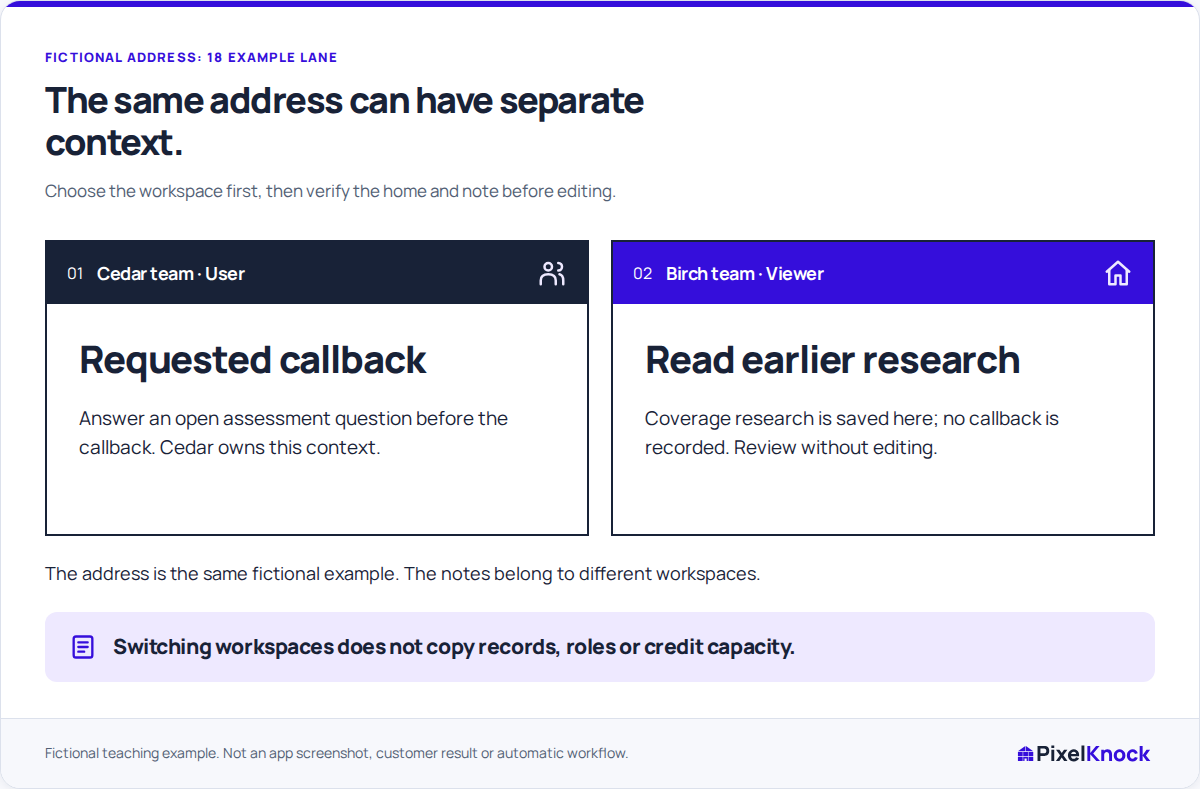
Check the selected workspace before continuing
In PixelKnock's Account view, use Switch workspace to choose the intended workspace. Check the name and your role, then wait for its saved homes and credit information to load.
Open the home and read its latest Activity. In the example, Cedar's note should describe the callback and assessment question. If you see only Birch's service-coverage research, check the selected workspace before making an update.
Each workspace keeps its own history and credit balance. Switching does not copy homes or combine purchases. Read the current workspace's saved information first, then review its quote if you need new details.

Finish the change before changing context again
Save the update and check the result at the home. A Viewer who spots an error can report the home and the correction needed to a teammate with writing access. Being an editor in another workspace does not change the Viewer role here.
If the app cannot confirm a save, check that original change before switching away. Use the recovery information shown for it. Another workspace's record will not tell you whether the first save succeeded.
Use a short departure check
Before leaving Cedar's workspace in the example, confirm:
- The selected workspace is Cedar.
- The answer is saved at 18 Example Lane.
- The callback's note and saved time still describe the arrangement.
When you return, check the workspace again before continuing. This takes less effort than untangling a correct note saved for the wrong team.