

Identify the decision the label will support
Start with a situation your current outcome choices do not describe well. If a clearer note would solve the problem, improve the note first. Add a label when the team needs to recognize the same situation across several homes.
For example, “Scope check needed” could identify an unanswered service question. That differs from Call back, which records an arranged follow-up. A teammate should be able to tell which action is needed without guessing from the label's color.
Design one label before opening settings
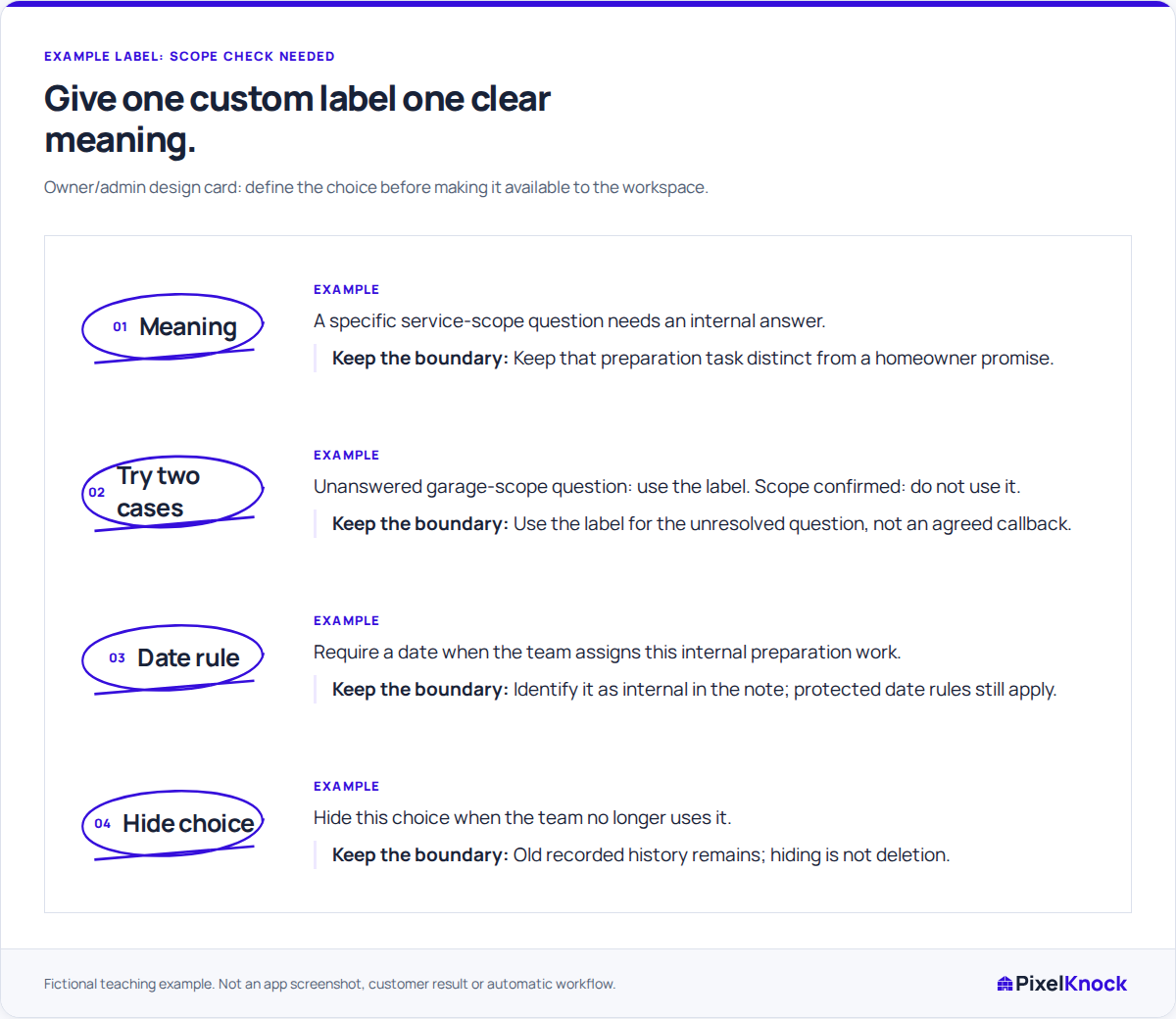
Use this fictional design card to agree what the proposed label means:
| Decision | Proposed definition |
|---|---|
| Label | Scope check needed |
| Meaning | A specific service-scope question needs an internal answer |
| Example | The homeowner asked whether an assessment includes a detached garage; the answer is still unknown |
| Counterexample | The scope question has already been answered |
| Date requirement | Require a date so the team knows when to review the unanswered question; identify it as an internal task in the note |
| Retirement rule | Hide the choice if the team stops using it; keep its original meaning clear in earlier records |
This is an example label, not a built-in choice. A corresponding note could read: “Scope question: does the assessment include the detached garage? Answer not yet confirmed. The saved time is for our internal check.” Agree who will find the answer through your team's usual process.
Configure the shared choice
An Owner or Admin can open Account and choose Customize outcomes and occupancies. In Outcomes, use Add label or edit an existing choice. Set the name, color, icon, display order and whether selecting the outcome requires a follow-up date.
Save the label, then check how it appears in the outcome choices at a home. The name should make sense without the color or icon. Because these choices are shared across the workspace, tell teammates what the new label means before they start using it.
Call back and Appointment keep their required dates. Do not call keeps its contact restriction even if its appearance or visibility changes. These protected meanings cannot be removed by restyling a label.

Test the label against an actual task
Give a teammate both situations from the design card: an unanswered garage-scope question and an answered one. They should choose the new label only for the unanswered question. If they would use it for both, sharpen the definition before adding more choices.
When a real home fits, save the outcome, a useful note and the required time. If the home already has an agreed callback or appointment, review that arrangement before changing its outcome or schedule. An internal question may belong in the note while the agreed follow-up remains the main task.
Reopen the record to check the label and date together. A saved internal task does not create a homeowner appointment, an automatic reminder or an accepted teammate assignment.
Retire a choice without changing the past
Hide a label when the team should stop selecting it. Existing history remains, so keep the old meaning understandable. Reusing the same label name for a different situation can make past records hard to interpret.
Before finishing, check one new selection, one counterexample and how the team will handle older records. A useful outcome list makes those decisions clearer; it does not need a separate label for every detail in a note.