
Callback scheduling with PixelKnock
Give the next conversation a time.
Keep requested callbacks with the home, the agreed time and the question you need to answer in PixelKnock.
Start with Free: 1,000 monthly credits and 1 seat.

Keep the reason with the request.
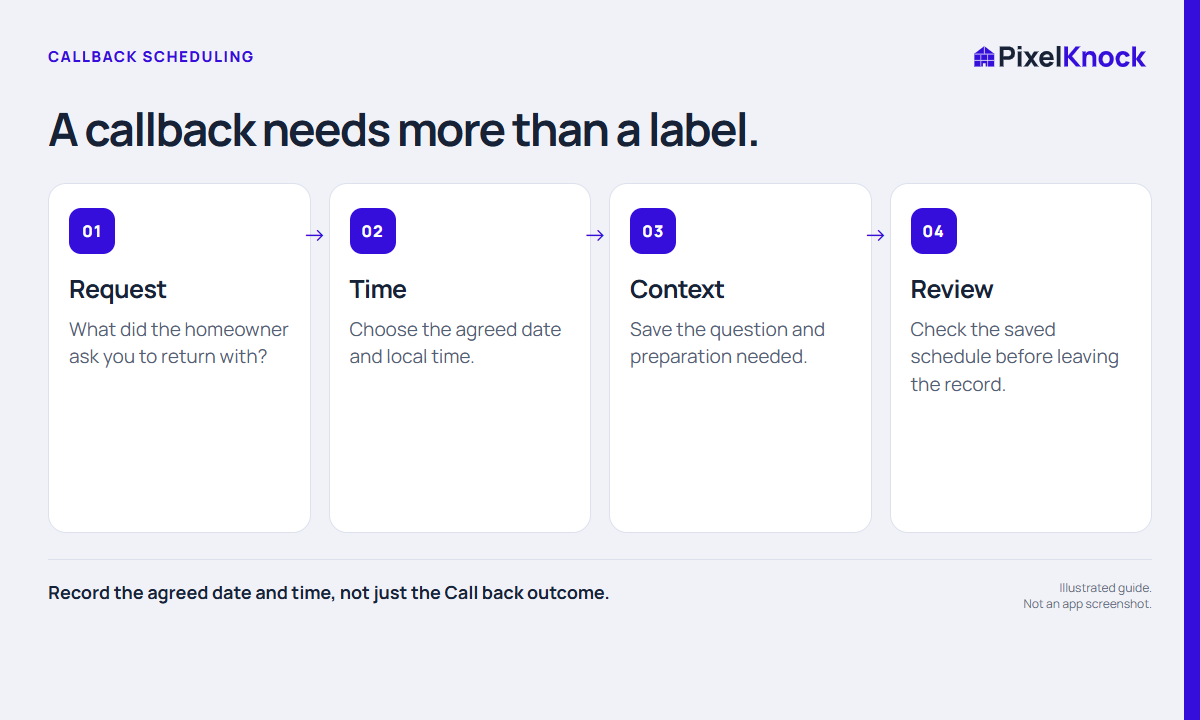
A time without context creates another round of preparation. PixelKnock keeps the requested callback, the latest note and the property history together so you can reopen the home and see what needs an answer.
Choose a date you can return to.
The Call back outcome requires a follow-up time. Use the date picker, check the displayed local time, and save the arrangement. The Follow-ups view gives dated work a place in your next session.
Try the complete callback loop.
Open a saved home, record a real callback arrangement and check it in Follow-ups. Reopen the property to confirm the question is still clear. Use your own phone for the conversation and your calendar if you need alerts.
- Record the agreed date and time, not just the Call back outcome.
- Keep the reason for the callback beside the schedule.
- Check the saved time and use your own calendar for alerts.
Useful answers
Before your next session.
Does PixelKnock place the callback?
No. It keeps the schedule and property context. You connect through your own phone or dialer.
Put this workflow to work.
Keep your next callback with the home.
Start with Free: 1,000 monthly credits and 1 seat.