
Appointment tracking with PixelKnock
Arrive with the right context.
Keep a homeowner appointment, its purpose and the preparation notes together at the property in PixelKnock.
Start with Free: 1,000 monthly credits and 1 seat.

Know what the visit is for.
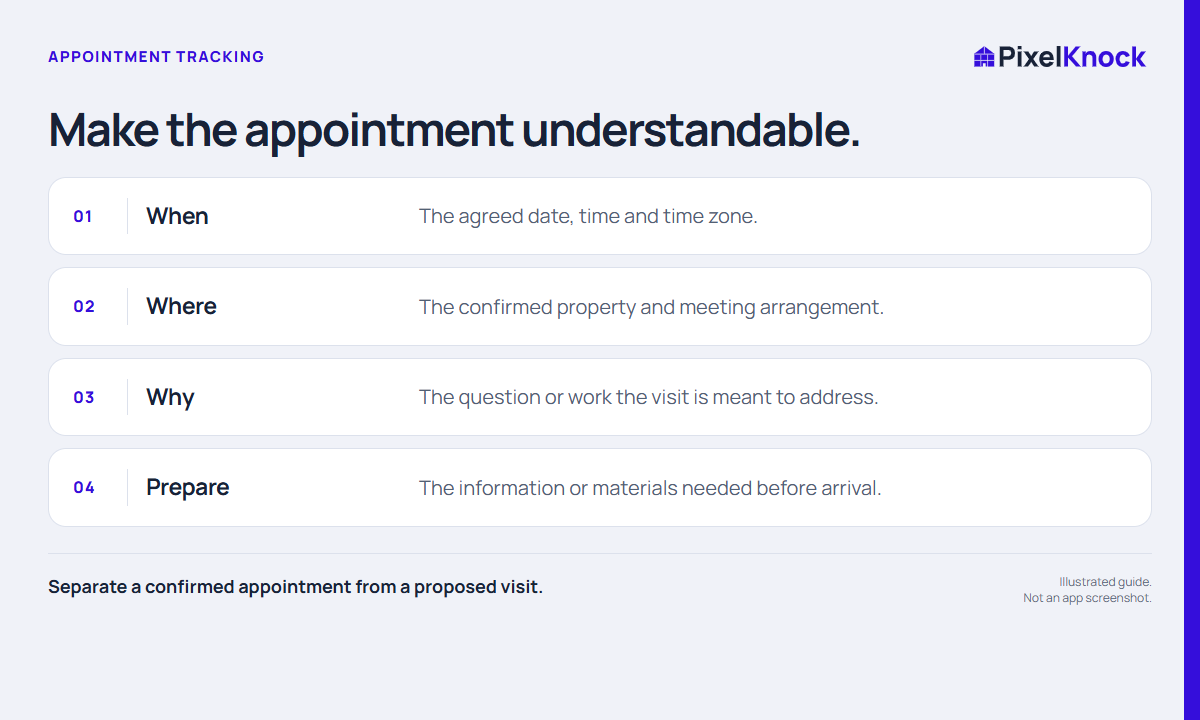
A property address and a calendar time are only the beginning. Keep the agreed purpose, questions to answer and preparation notes beside the home so the next person can understand the visit.
Give an appointment a real time.
PixelKnock asks for a date and time when you choose Appointment. Read the saved schedule in Activity and return to dated work through Follow-ups.
Close the loop after the visit.
Save the actual result, update any next step and mark completed work done. Your external calendar can handle alerts while PixelKnock holds the property context.
- Separate a confirmed appointment from a proposed visit.
- Record the time, purpose and preparation in plain language.
- Keep external calendar reminders consistent with the saved property schedule.
Useful answers
Before your next session.
Does this send a calendar invitation?
No. Record the arrangement in PixelKnock and use your existing calendar or communication tools for invitations and reminders.
Put this workflow to work.
Keep appointment context at the property.
Start with Free: 1,000 monthly credits and 1 seat.