

Prepare a precise invitation handoff
Start with the email address your teammate will use to sign in and the workspace they need. Agree what they will do before choosing a role: reviewing saved homes calls for different access from updating notes or managing the team.
An authorized workspace manager can create an invitation from Team. Check the recipient and role, then share the private link or complete invitation code through your team’s normal process. Send it to the intended person and include the workspace name, especially if they belong to several teams. Check the displayed expiry before reusing an older invitation.

Follow the invitation to its actual result
Use this checklist to find the next step:
| Current result | What it establishes | Next check |
|---|---|---|
| Invitation is pending | The invitation exists | Has the intended person received the private link or code? |
| Recipient can review it | The signed-in person can inspect the invitation | Do the workspace name and role match the intended work? |
| Invitation is accepted | The recipient has joined | Can the teammate open the intended workspace and saved record? |
| Link is expired, revoked or unavailable | This invitation cannot be used as it stands | Ask the administrator to check the recipient and current invitation |
An invitation email and workspace membership are different steps. Check access after acceptance rather than treating a sent message as a completed handoff. If email delivery is unavailable, share the private invitation link or code directly with the teammate.
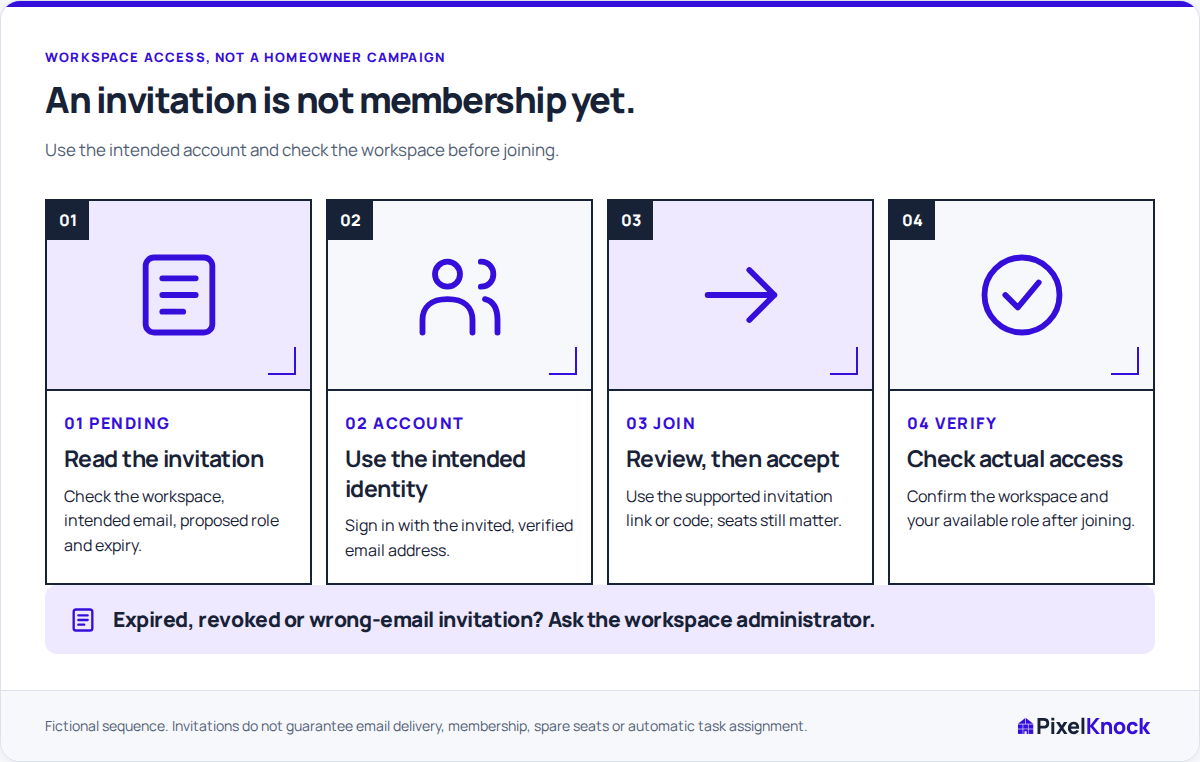
Walk through a mismatched sign-in
In a fictional example, a manager invites Jordan’s work address to the North Team workspace as a User. Jordan opens the link while signed in with a personal address. Before creating another invitation, compare the invited address with the account currently signed in.
Jordan should use the invited account, complete email verification when requested, and review the workspace, recipient, role and expiry. If the manager used the wrong address, resolve that with the manager rather than joining through an account Jordan will not use for work.
Once accepted, Jordan selects North Team and opens the practice home agreed with the manager. That final check catches a second possible mistake: successfully joining one workspace while continuing to work in another.
Resolve the branch that is actually blocked
For an expired or revoked invitation, ask the administrator to review its state and provide a replacement when appropriate. Share the replacement as the current invitation and remove the old link from the handoff message.
If PixelKnock reports that more seats are needed, review capacity instead. Active memberships and pending invitations affect seats. The owner or administrator should check both before sending more invitations; repeating the acceptance attempt does not create room.
Finish with the first access check
Have the teammate perform one task that matches the role. A reviewer can open a saved home and explain its latest note. A rep expected to write can add the agreed onboarding note and confirm it appears in Activity.
Then agree the first real task directly. Joining a workspace does not assign a callback or notify someone mentioned in a home note. The handoff is finished when the right person can do the intended work in the right workspace.