
Workspace invitations with PixelKnock
Bring a teammate into the right shared workspace
Bring a teammate into the shared home records they need. Choose their role in Team, share the invitation, and confirm they can do the intended work after joining.
Start with Free: 1,000 monthly credits and 1 seat.

Create access for a defined job.
Invite a teammate with the role their work needs. For example, someone reviewing saved homes may need read access, while a rep recording conversations needs permission to update the record.
Review the invitation before joining.
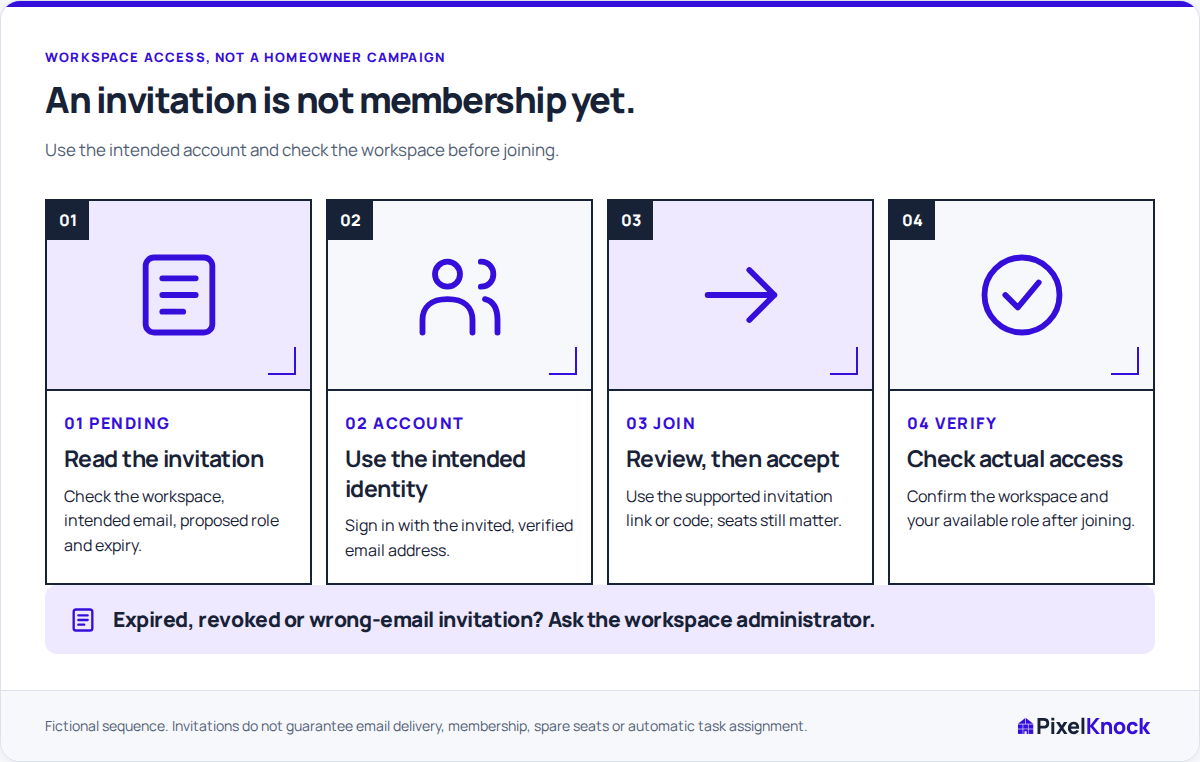
The join flow shows the workspace, recipient, role and expiry. The teammate uses the invited email address, completes verification when prompted and checks those details before accepting.

Check membership where the work happens.
Have the new teammate open an agreed saved home. A reviewer can read the latest note; a rep with writing access can add an onboarding note and check it in Activity. This confirms usable access, not just a sent invitation.
Resolve invitation and capacity issues separately.
An expired or revoked link needs the administrator’s attention. A seat warning calls for a review of memberships and pending invitations. Use the reported state to decide which problem to resolve.
Useful answers
Before your next session.
Does sending an invitation mean someone joined?
Sending and accepting are separate steps. Check membership and have the teammate open the intended workspace after accepting.
How can we join if the invitation email has not arrived?
Share the private invitation link or complete code with the intended teammate. Check the expiry and use the email address the invitation names.
What should a teammate do after joining?
Confirm the selected workspace and try a task appropriate to their role. Agree responsibility for homeowner work directly; membership alone does not assign it.
Put this workflow to work.
Review one teammate’s invitation and confirm their intended workspace access.
Start with Free: 1,000 monthly credits and 1 seat.