

Start with the home and the person
Read the saved contact details before adding a number or email. Confirm which person supplied it and which home it belongs to. A number offered during a visit might belong to the homeowner, another household member or someone helping with the appointment.
Decide what needs changing. A missing email calls for an addition. A number you have confirmed is disconnected calls for a status correction. Keep the explanation short enough that a teammate can see why you made that choice.
Separate the value from its source and status
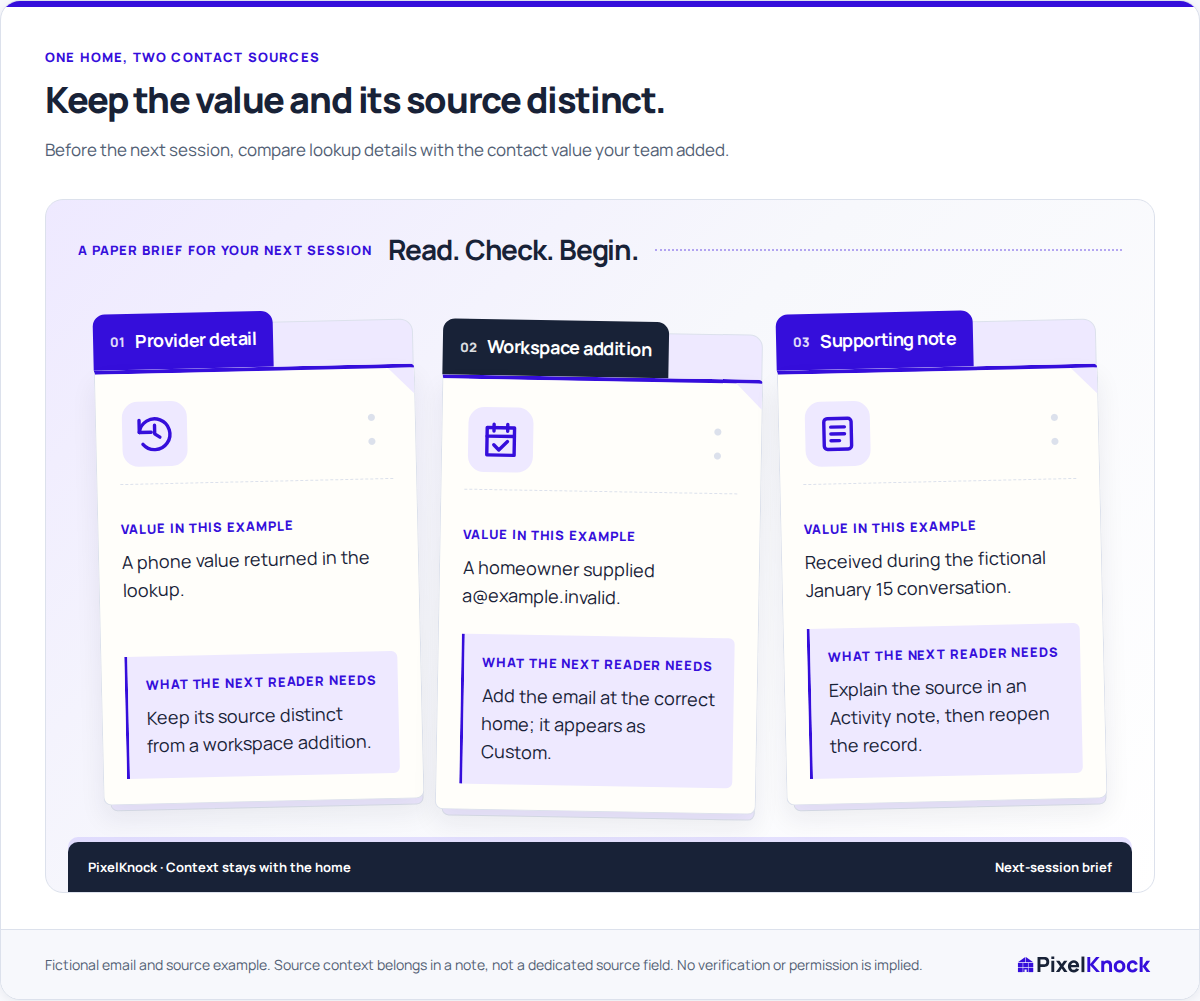
In this fictional example, a homeowner supplies [email protected] during a January 15 visit. The rep saves the email and explains where it came from. The existing provider phone stays a separate piece of information.
| Record item | Source | What the team knows |
|---|---|---|
| Phone already shown in Details | Returned provider information | Read its displayed indicators; the visit did not verify this number |
[email protected] |
Supplied during the January 15 visit | The team has added it, but has not checked delivery |
| Activity note | The rep's account of the visit | “Homeowner supplied this email during the January 15 visit. Added to their contact group. No message sent.” |
The email is fictional. PixelKnock stores the contact value in the contact editor and the explanation in Activity; there is no separate source-verification field. A useful note tells the next reader who supplied the detail and when, without copying the whole conversation.
Save the addition at the intended home
In PixelKnock, open the saved home's owner details and choose Add phone or Add email under the appropriate contact group. Enter the value, check it for typing errors and save. A Viewer can read these details; saving requires a role with writing access.
The Custom badge identifies a workspace addition. It remains when provider details are refreshed, so teammates can distinguish information your team entered from information returned by the provider. Adding a new value leaves the provider's database unchanged.
Custom phone numbers have unknown DNC status and no in-app dial link. Follow your organization's contact process before using a number in your own phone or dialer. Saving it does not place a call or establish permission to contact someone.

Correct the right piece of information
Use the contact-status control for a problem with a particular phone number or email. For example, record a confirmed disconnected number on that number and explain what you observed in Activity. The home's overall outcome answers a different question about the homeowner work.
If you added a custom value to the wrong group, remove that workspace addition using its delete control. This does not delete provider information. If a save has an uncertain result, use the displayed recovery control for that change before submitting another edit.
Reopen the record as its next reader
Check the saved value, its contact group and the Custom badge. Then read the Activity note. Could a teammate tell who supplied the detail, when it was received and whether anything still needs checking?
In the example, a successful save means the email appears in the intended group and the January 15 note explains it. Delivery remains untested. Keeping that distinction clear is more useful than treating a newly entered address as verified.