

Put both requirements on the page
Start with the current pricing calculator. It compares complete supported options using your credit and seat requirements. Keep those two inputs visible even if one is the reason you started looking at plans.
Seats answer who can belong to the workspace. Research credits support new information requests. More of one does not necessarily solve a shortage of the other. Someone who only reads saved homes may still need workspace access, while a small team doing more research may need additional credit capacity.
Count the people who actually need access rather than every name in an old staff list. For a current workspace, review active memberships and pending invitations as well. A pending invitation can affect capacity before the teammate finishes joining.
Compare two requirements in one worksheet
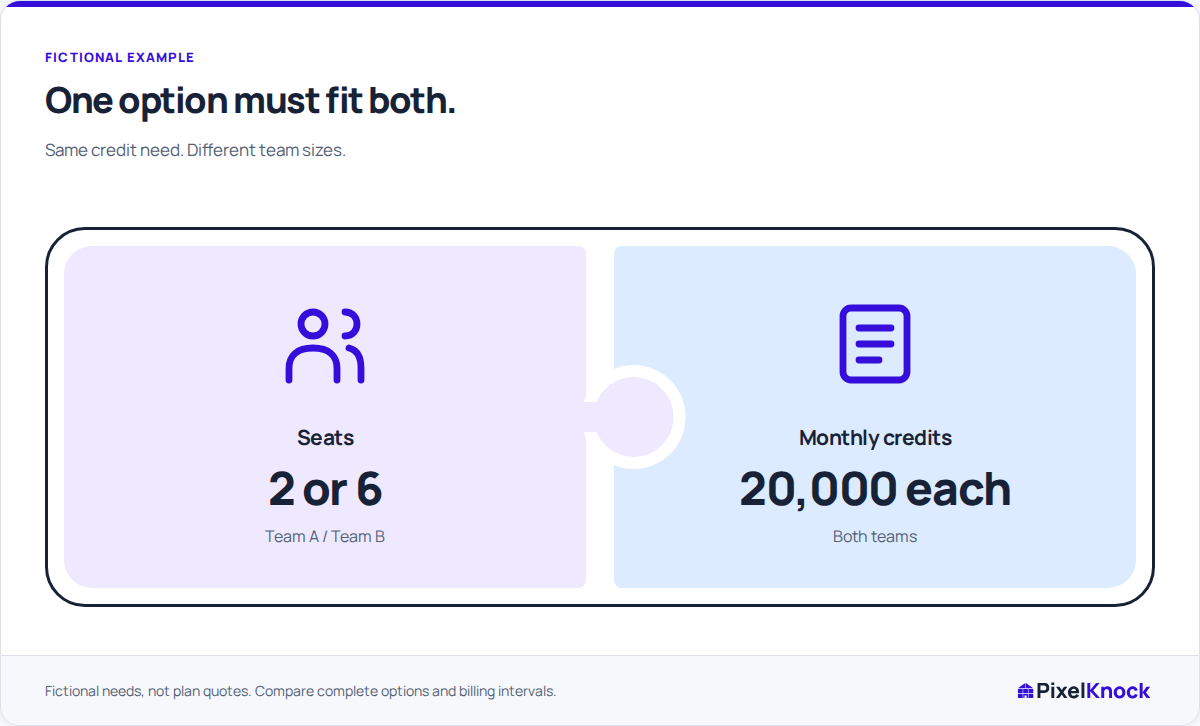
Use a worksheet like this before selecting an option. The figures below are fictional requirements, not a forecast of usable contacts or a quoted plan price.
| Requirement or check | Team A | Team B |
|---|---|---|
| People needing access | 2 | 6 |
| Desired monthly research credits | 20,000 | 20,000 |
| Does the complete option cover seats? | Check at least 2 | Check at least 6 |
| Does it cover the credit request? | Check at least 20,000 | Check at least 20,000 |
| Payment to compare | Full selected-term total | Full selected-term total |
Both teams enter the same credit request, but Team B must accommodate more people. The cheapest-looking unit is not necessarily the lowest complete option that satisfies both requirements. Read the number of units or bundles and their combined seats and credits.
Record the actual calculator result when you do this exercise. Do not copy a price from this article into a purchasing decision: the maintained pricing page owns current plan information, and your account may need its own offer.
Change the starting point without dropping a need
The calculator lets you start from credit needs or team size. Changing that starting point does not erase the other requirement. Review both inputs and the complete configuration before deciding that an option fits.
An option may provide more capacity than you requested because its units are bundled. Distinguish requested capacity from purchased capacity in your notes. If an option cannot meet the requirements, do not compare its partial total as though it covered the whole team.
For the fictional teams, a useful comparison note is: “Same research request, different access requirement. Compare the complete eligible option for each team, then decide whether the included extra capacity is useful.” That is more informative than naming a plan without the inputs behind it.
Compare the payment period separately
Review monthly and annual choices as payment decisions. An annual price expressed as a monthly equivalent is not a monthly invoice. Read the full annual charge, and keep annual payment timing separate from monthly credit grants.
Do not multiply a monthly credit allowance into an immediate yearly balance. Similarly, a lower per-credit price does not establish that the team needs more capacity. Choose an option for the work and access you can explain.
The public calculator is a comparison tool. It is not an account-specific proration quote or confirmation that a subscription change has taken effect. An owner making a change should inspect the actual offer and resulting state in Billing.
Check the workspace after the decision
In the intended workspace, review the current allowance and available balance in Usage. Credits already reserved for unresolved requests are not freely available for another request. Keep that immediate balance question separate from the plan's capacity.
Finish with a record of the required seats, requested credits, complete selected option and payment period. Then confirm the workspace has the intended access and allowance. Saved home reads, notes and existing follow-up context remain useful without turning the credit target into a promised number of homes or reachable people.
