
Workspace access roles with PixelKnock
Give each teammate the access their work needs.
Choose workspace access for people who manage the team, work property records or review saved information in PixelKnock.
Start with Free: 1,000 monthly credits and 1 seat.

Start with the teammate’s task.
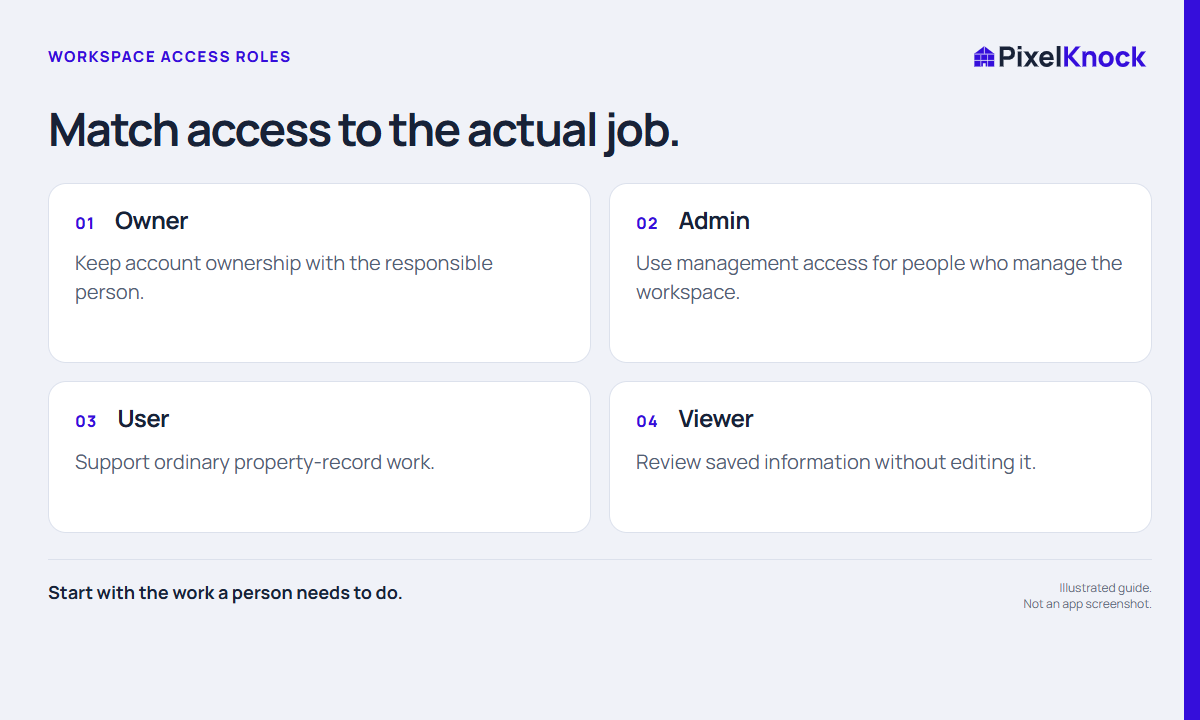
Some people work property records; others only need to read them. PixelKnock separates Viewer access from writing roles and workspace management so access can reflect the job.
Keep ownership and management clear.
Use the current team controls to manage members and roles. Reserve account ownership and administrative responsibility for the people who actually hold them.
Make access part of onboarding.
Have each teammate confirm they can perform the intended task, then agree the note and handoff routine. Permissions support the workflow; they do not assign the next conversation automatically.
- Start with the work a person needs to do.
- Viewer access is for reading saved information, not making property changes.
- Confirm management and ownership separately from everyday record work.
Useful answers
Before your next session.
Can a Viewer edit notes or reveal contacts?
Viewer access is read-only for saved information. Ask the workspace administrator for the role appropriate to record work.
Put this workflow to work.
Set up a shared workspace with clear roles.
Start with Free: 1,000 monthly credits and 1 seat.