
Calendar alert alignment with PixelKnock
Use your calendar for the alert and the home for context
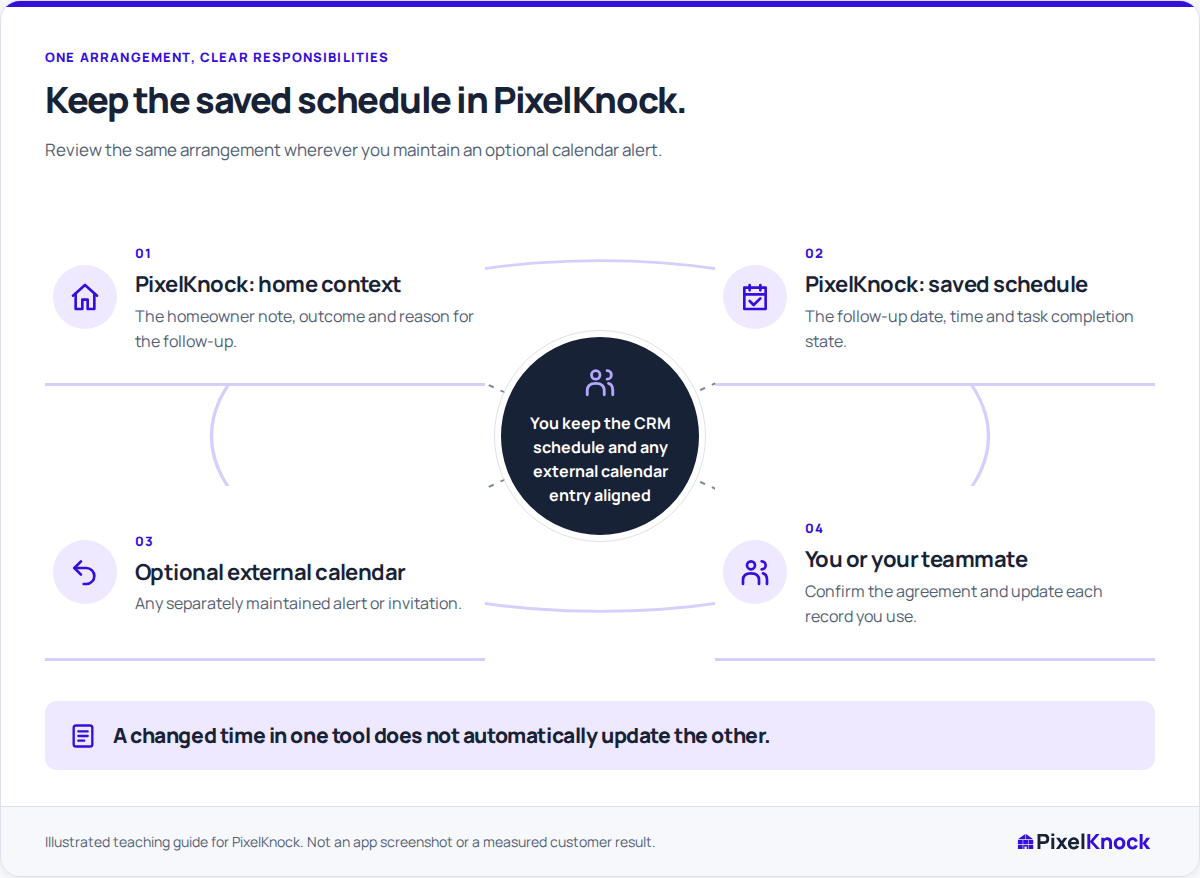
Use the CRM record for the arrangement and your calendar for an optional alert. Check both deliberately when a date, time or purpose changes.
Start with Free: 1,000 monthly credits and 1 seat.

Save the arrangement with the home.
PixelKnock keeps the follow-up date and time beside the notes and recorded outcome. Reopen that home to understand why the conversation or visit is planned.

Check the displayed time zone.
The follow-up picker shows your local time zone. Confirm the intended date and time before saving, especially when the homeowner describes the arrangement in another zone.
Maintain the optional alert separately.
If you use an external calendar, create or change its alert there. PixelKnock does not synchronize calendar events or send invitations; the saved CRM schedule and the calendar entry need separate checks.
Return to the latest context.
Before acting on an alert, read the home’s recent Activity. A later answer or changed arrangement may affect what the next conversation should cover.
Useful answers
Before your next session.
Does saving a follow-up send a calendar invitation?
No. The date and time are saved with the home in PixelKnock. Create any external alert or invitation in the calendar you use.
What should I check after a time changes?
Verify the saved PixelKnock follow-up, its explanatory note and any separate calendar entry. Check date, time and time zone in each place.
Does the picker use the homeowner’s time zone automatically?
The picker displays your local time zone. Confirm the homeowner’s intended zone and corresponding time rather than assuming an automatic conversion from their location.
Put this workflow to work.
Compare one PixelKnock follow-up with the external alert you maintain.
Start with Free: 1,000 monthly credits and 1 seat.