
Use the count to answer a narrow question
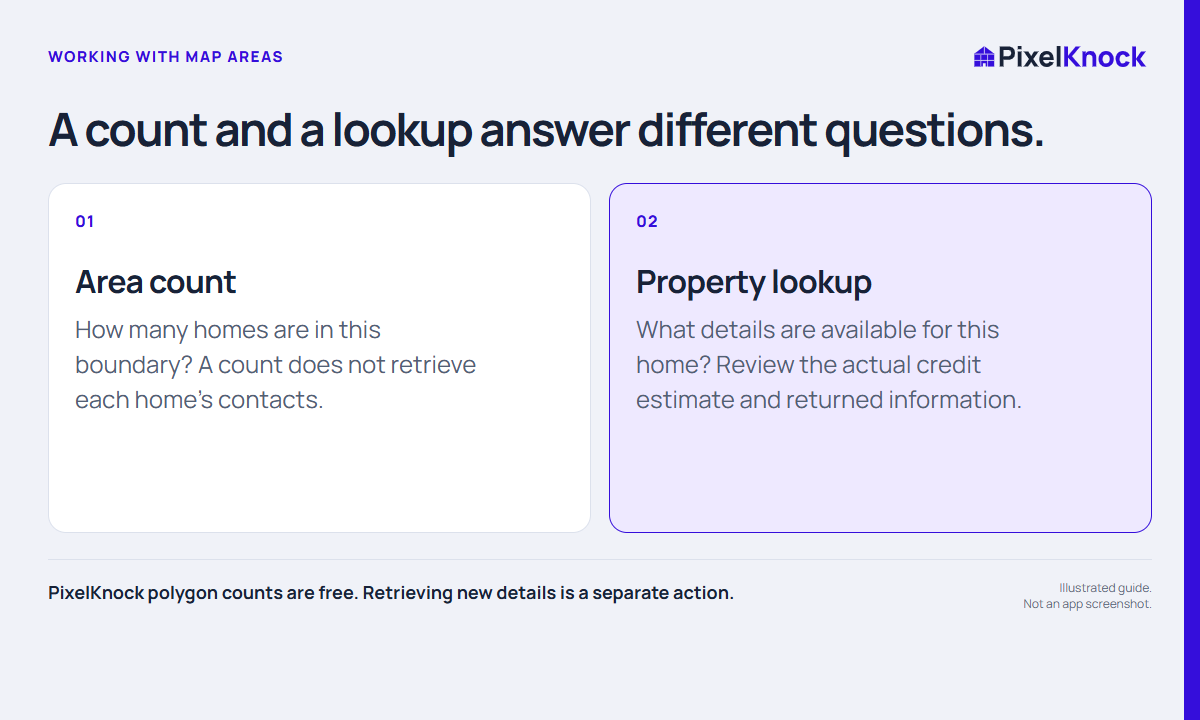
An area count helps answer, “How many homes are in this boundary?” That can make a vague plan more concrete. It does not tell you how many people can be reached, who needs your service or how many sales the area will produce.
Keep that distinction visible in your planning notes. A large number is not automatically a better prospecting area. The right scope also depends on serviceability, your available time and whether you are researching new homes or reviewing saved work.
Draw and check the area
In the current PixelKnock map, choose Draw area, outline the streets you intend to include and select Count homes. The count uses zero credits. Review the resulting number alongside the boundary you drew before moving on.
If the shape includes streets you did not intend to research, redraw a more useful area. A long, irregular boundary may be harder to interpret than a small set of recognizable streets. Use a practical outline rather than trying to include the largest possible area in one action.

Keep counting separate from retrieving details
| Action | What it does | What it does not establish |
|---|---|---|
| Count a polygon | Returns the number of homes for the area | Contact details for every counted home |
| Open a new home | Retrieves available details under the app’s lookup flow | A guaranteed usable phone number or interest |
| Open a saved home | Shows information already in the workspace | That old information is still current |
PixelKnock’s current polygon workflow does not screen or purchase all the records in the outline. An older screenshot that shows a separate bulk screening confirmation does not represent the current count-only behavior.
Choose a manageable working slice
After the count, decide what you can reasonably review in the session. You might work along one street or return to a small group of saved callbacks. Write the task and stop point before opening individual homes.
A fictional plan could be: “Review the saved homes on these two streets and identify which notes still contain an unanswered service question.” The success of that session is a clearer set of records, not a target number of new contacts.
Record the interpretation, not just the number
If you keep an area-planning note in your own planning document, include the boundary, date, task and the limitation of the count. That makes it easier to understand later why you chose the area.
When the session ends, compare the planned task with the work you actually completed. Use that experience to adjust the next session’s scope. The count is a useful planning input; the property records and your notes explain the work itself.